
S-100156 Community - Remove Ordered from Landings in option
Description
We have updated the Landings In bid preference option to remove the unsupported "Ordered" selection. This change ensures that all displayed preference options are fully functional and supported by the PBS system, providing you with a more accurate bidding experience.
Acceptance Criteria
GIVEN any ALC bidder
WHEN in an award pairing, Landings In bid preference screen
THEN I should not be able to see the Ordered option and the counting deadhead legs checkbox should be unchecked by default
S-99492 Community - Archived Import Download
Description
This release introduces a new, dedicated interface to view and manage your history of imported files, providing greater transparency and control over your data.
Who Can Use It?
- This feature is exclusively available to Users with the Scheduler Role.
What's New?
We have added a new option that grants Schedulers the ability to view and manage all previous import files.
1. Comprehensive File History
- You can now access a table showing all files that have been imported into the system.
- The table layout is similar to the existing 'Periods' tab for quick familiarity.
2. Powerful Filtering Options
Easily locate the exact file you need using new filters:
- Import Type: Filter the list based on the type of data that was imported (e.g., Crew Data, Schedule Updates, etc.).
- Time Period: Specify a date range (e.g., last 7 days, last month, custom dates) to narrow down the file list.
- Time of Import: Refine your search based on the specific time of day the file was uploaded.
3. Download Capability
- Every file displayed in the history table now includes a Download option, allowing you to quickly retrieve the original imported file for auditing or review purposes.
Acceptance Criteria
GIVEN a PBS scheduler
WHEN viewing the General/Archived Imports tab
THEN all previous imports for the current ALC will be displayed
WHEN filtering based on the import group type
THEN only imports with that group are shown + any other filters are followed
WHEN filtering based on the period
THEN only imports imported in that period are shown + any other filters are followed
WHEN filtering based on the time
THEN only imports imported in that time frame are shown + any other filters are followed
WHEN selecting an archived import
AND
WHEN clicking the download button
THEN a dialogue will pop up to prompt the user where to save the file
AND
THEN the file will download successfully
GIVEN a PBS CrewAdmin
WHEN viewing the general tab
THEN they will not see the Archived Imports tab
S-97230 Community - Change the log out message if not submitted bid
Description
We have updated the messaging displayed when you attempt to sign out without submitting recent changes to your bid preferences. This change is designed to use more accurate and standard terminology.
What Changed?
The pop-up message that appears when you try to log out with unsubmitted bid changes has been updated for clarity:
| Element | Old Text | New Text |
| Pop-up Header | "Unsaved Bids" | "Unsubmitted Bids" |
| Message Body | "You have not saved one or more bids that you have updated. Do you still want to sign out?" | "You have not submitted one or more bids that you have updated. Do you still want to sign out?" |
| Action Button | "Cancel" | "No" |
Acceptance Criteria
GIVEN any ALC bidder
WHEN logging out of PBS, and I have not submitted my current bid group
THEN I will see the NEW error message "You have not submitted one or more bids that have been updated. Do you still want to sign out?" on the pop-up.
GIVEN any ALC bidder
WHEN logging out of PBS, and I have not submitted my current bid group
THEN I will see the NEW header: "Unsubmitted bids" on the pop-up.
GIVEN any ALC bidder
WHEN logging out of PBS, and I have not submitted my current bid group
Then I will see the popup with a message with two buttons to click - the "Yes" and "No" button.
S-99403 Community - Externalize and secure PBS Class API credentials
Description
This release delivers a significant security and infrastructure update for how your system communicates with the PBS Class API.
What Changed?
We have modernized the approach for authenticating with the PBS Class API interface.
- The system no longer uses a single, shared (hardcoded) set of credentials for all customers.
- The system has been upgraded to utilize a modern, secure, and dedicated secret management solution.
What This Means for You
- Improved Security: Your instance of the Class API now uses its own unique, securely stored credentials. This ensures a stronger separation of access and protects your data more effectively.
- Enhanced Stability: By separating credentials, any issue related to a specific authentication key is isolated to your environment, improving overall system stability.
- Customer-Specific Configuration: This change allows for better configuration management, ensuring that your connection to the PBS Class API is robust and dedicated to your operational needs.
Acceptance Criteria
GIVEN a PBS Class API installation
WHEN 2 new configuration parameters are added: CLASS_API_USERNAME and CLASS_API_PASSWORD on NAVNWSParams.xml file
THEN Class API will read the configured credentials and authenticate its requests against them.
GIVEN a PBS Class API installation
WHEN adding a configuration parameter CLASS_API_PASSWORD on NAVNWSParams.xml file
THEN that parameter will be hashed using SHA-256 and Base64 encoded to securely store it on the configuration file using OpenSSL.
GIVEN a PBS Class API installation
WHEN No configuration parameters are added on NAVNWSParams.xml file ( CLASS_API_USERNAME and CLASS_API_PASSWORD)
THEN Class API requests will return a HTTP 401 error .
S-100733 Community - PBSReporting reuse connections
Description
This release includes an important, under-the-hood optimization to how our system manages connections to the database, resulting in improved efficiency and stability for reporting and administrative processes.
What Changed?
We have optimized the way the system connects to the database, specifically within the PBSReporting and FalconAdminHelper modules.
- Reusing Connections: Instead of creating a new connection for every small operation, the system will now efficiently reuse an existing connection across multiple related tasks.
What This Means for You
- Faster Reporting: By dramatically reducing the number of new database connections that need to be opened, we anticipate a reduction in processing time for various reports and data-intensive operations.
- Improved Stability and Reliability: Fewer database connections being opened and closed means less overhead and less strain on the database server, leading to a more stable and reliable reporting platform, especially during peak usage times.
- Enhanced System Efficiency: This change optimizes resource allocation, ensuring the system runs more smoothly overall.
Acceptance Criteria
GIVEN a PBS admin
WHEN creating a report
THEN the total runtime will shrink
S-100732 Community - ReportProcessor::WalkTree improve processing speed
Description
We have completed an optimization to the core logic that processes and generates your reports, leading to faster results, especially for complex or composite reports.
What Changed?
We have refined the way the system processes the input data for reports (specifically within the ReportProcessor::WalkTree function).
- The system is now using a more efficient method that quickly looks up and finds report elements by utilizing an internal data structure (std::map).
What This Means for You
- Faster Report Generation: This technical refinement significantly speeds up the time it takes for the system to process report structures, which translates directly into reduced waiting time when running reports.
- Improved Performance for Composite Reports: Users running complex reports built from multiple components (Composite Reports) will notice the most significant gains in processing speed.
- Overall Efficiency: This optimization reduces the computational load on the system, contributing to better performance and responsiveness across the entire application.
This change is part of our ongoing commitment to making the reporting tools as fast and efficient as possible.
Acceptance Criteria
GIVEN a PBS admin
WHEN creating a report
THEN the total runtime will shrink
S-98870 Community - Reduce duplication around time & date & array-to-text creation in ClassBid's bidsservice
Description
This release includes a behind-the-scenes update to standardize how dates and times are presented across the bidding application.
What Changed?
We have optimized the system code to ensure a single, consistent approach is used for displaying date and time information throughout the application.
- Specifically, this ensures that the Time format is consistently shown as HH:MM (Hour:Minute).
- The Date format is consistently shown as Month Day, Year (e.g., December 15, 2025).
What This Means for You
- Improved Consistency: You will now see dates and times displayed in the exact same format everywhere in the bidding interface, eliminating any potential confusion caused by slight variations.
- Fewer Errors: Centralizing the logic for formatting data helps prevent display errors, ensuring the dates and times you rely on are always accurate and readable.
- Faster Updates: By simplifying the underlying code, future updates to how we present time and date information can be implemented more quickly and reliably across the entire application.
Acceptance Criteria
GIVEN As a bidder
WHEN Awarding/Avoiding/Adding bid line
THEN time shown as 00:00 or 000:00, dates shown as Month day, year, lists of values shown as value1, value2, value3
S-97275 Community - Excel Report issue - FO & FA Runs
Description
We have resolved a critical issue that prevented the Excel report generation feature from running correctly for certain user groups.
What was Happening?
Some users, particularly those categorized as Flight Attendants (FA) and First Officers (FO), experienced significant issues when attempting to export data to an Excel report. Reports were either taking an unusually long time to complete or failing to generate entirely.
What's Fixed?
- Reliable Excel Generation: The underlying issue causing the failures and slowdowns for FA and FO roles has been identified and corrected.
- Consistent Performance: Excel report generation is now expected to complete reliably and in a timely manner for all users, mirroring the successful performance previously seen for Captain (CA) reports.
Acceptance Criteria
Given Admin has logged into the Admin UI
When creating the excel report for FAs
Then the system should create the Excel report in a timely manner.
Given Admin has logged into the Admin UI
when creating the excel report for FOs
Then the system should create the Excel report in a timely manner.
S-97229 Community - Autosave & Submit-Remove the Save Button, Auto-Save triggered off of the apply action
Description
We are excited to announce a significant improvement to your bidding experience: manual saving is no longer required! Your changes are now automatically saved as you work, preventing accidental data loss.
What Changed?
- The Manual "Save" Button Has Been Removed: The dedicated "Save" button has been taken out of the bidding interface to streamline your workflow. The remaining toolbar icons have been rearranged to fill the space.
- Introducing Auto-Save: Your bid changes are now automatically saved to the system whenever you perform a critical action.
How Auto-Save Works
Your changes will be saved automatically when you perform any of the following actions:
- Clicking the "Apply" button after creating or editing a new bid line.
- Reordering your existing bid lines or bid groups.
- Deleting a bid line or bid group.
- Using the Copy/Cut and Paste options.
- Adding new bid lines from the Pairings, Trainings, or Short Calls tabs.
What This Means for You
- Worry-Free Bidding: You no longer need to remember to click "Save." This significantly reduces the risk of losing work if you navigate away or experience an interruption.
- Faster Workflow: Focus purely on building your bid without the interruption of manually saving.
Acceptance Criteria
GIVEN any ALC bidder
WHEN viewing the bidder UI
THEN I will no longer see the save button
GIVEN any ALC bidder
WHEN applying ANY bid preference, using the apply button
THEN my current bid will be auto saved to my cache
GIVEN any ALC Bidder
WHEN reordering or deleting lines in my bid groups
THEN the system will auto save my bid
GIVEN any ALC Bidder
WHEN copying and pasting bid lines or bid groups
THEN the system will auto-save my bid
GIVEN any ALC Bidder
WHEN adding bid lines from the pairings tab, the training tab, and the short calls tab (DAL Only)
THEN the system will auto save my bid.
S-97231 Community - Add a status message for the bidder for them to know where they are in process
Description
What Changed?
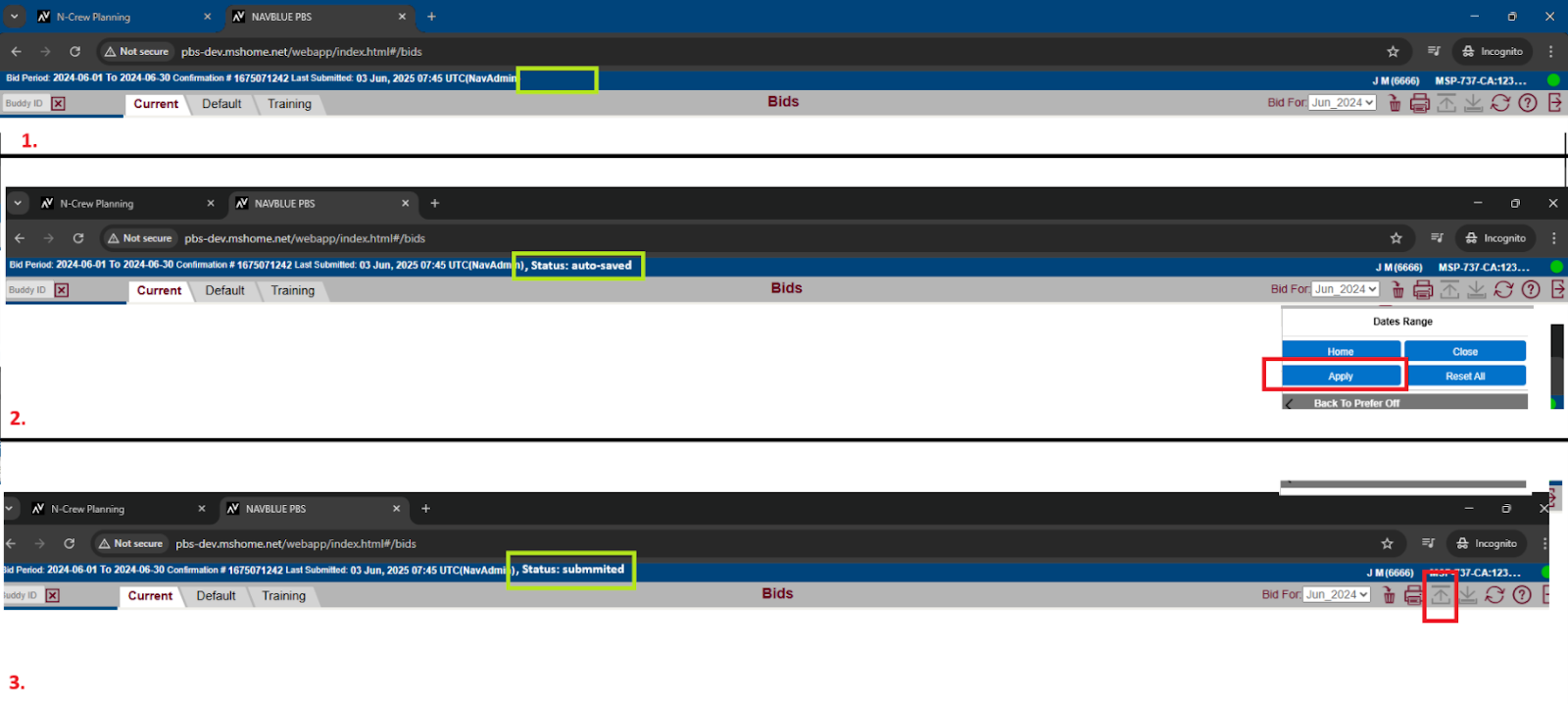
A new status message area has been introduced to inform you exactly where you are in the process after performing an action.
What This Means for You
- Clear Confirmation: You will now receive immediate visual feedback letting you know the system successfully received your input.
- Example: When you successfully save or submit a bid, you might see a message like "Bid Saved Successfully" or "Submission Processing."
- Process Transparency: The status message will clarify the current state of your action, eliminating guesswork about whether a process is running, completed, or requires further input.
- Reduced Uncertainty: This enhancement provides a smoother, more reassuring bidding experience, particularly after performing critical actions like applying bid lines or submitting the final bid.
This feature is designed to ensure you always know the current state of your bid and the system's response to your actions.

NEW STATUS MESSAGE:
Status: Autosaved
OR

Status: Submitted Confirmation #: xxxxxxxxx
Status should occur after the apply/submit button hit and stay for 2s. After that should disappear.
Acceptance Criteria
GIVEN any ALC
WHEN adding bid preferences to my bid and I click the apply button
THEN I will see the new status message above reading Status: Autosaved
GIVEN any ALC
WHEN adding bid preferences to my bid via pairings tab and I click the award button
THEN I will see the new status message above reading Status: Autosaved
GIVEN any ALC
WHEN adding bid preferences to my bid via pairings tab and I click the avoid button
THEN I will see the new status message above reading Status: Autosaved
GIVEN any ALC
WHEN adding training bid preferences to my bid via Training tab and I click the award button
THEN I will see the new status message above reading Status: Autosaved
GIVEn any ALC
WHEN adding training bid preferences to my bid via Training tab and I click the avoid button
THEN I will see the new status message above reading Status: Autosaved
GIVEN any ALC
WHEN adding short call bid preferences to my bid via short calls tab and I click the award button
THEN I will see the new status message above reading Status: Autosaved
GIVEN any ALC
WHEN submitting my bid
THEN you will see the Status: Submitted with Confirmation number: xxxxxxx with no changes to the bid submission pop-up .
S-100181 Community - Implement Updated Import Error Messages
Description
Update error messages for AIMS and RAIDO integrations so that the error messages are user friendly.
Acceptance Criteria
GIVEN a PBS admin
WHEN importing files & there is an issue
THEN I'll see the updated error message
S-65408 Community - NOC Community-Add Total Line Credit to N-OC Export
Description
We have enhanced the N-OC Export to include a crucial piece of compensation information, streamlining your payroll and administrative processes.
What's New?
- Total Line Credit (In Period Credit) is now included in the N-OC Export.
This new field provides the total number of minutes of credit earned by a crew member within the payroll period, ensuring that the data ingested into your N-OC (Network Operations Center) system is complete and accurate.
Where to find it:
- The total credit, presented in minutes, will be included within the crew section of the N-OC Export data.
- This value will match the "In Period Credit" total found in reports like the Schedule Report.
This update helps simplify your data reconciliation and ensures seamless integration with your downstream systems.
Acceptance Criteria
Given an Admin
When viewing the N-OC Export file from a run
Then I should see the total in period credit displayed in minutes for each crewmember in the api ExternalAWDCredit field.
S-99796 Community -SSO - Login with Bidder Credentials on Admin UI has Login Cycling Issue
Description
As a Bidder when logging via the URL for Admin UI I should to be redirected to Webapp (Bidder UI) and logged in
Acceptance Criteria
GIVEN Admin UI with SSO
WHEN Bidder is logging in
THEN The bidder is redirected and logged in to Webapp (Bidder UI)